Guides · Updated 27 October 2026
Can you batch crop in Lightroom?
Lightroom is where many bird photographers do everything else, so it's the first place people look for a batch crop. It has one, but it's built for photos where the subject stays put.
Short answer: yes, Lightroom Classic can crop many photos at once by syncing or pasting one crop to all of them. But it copies the same box (position, size, shape and angle) to every photo, so when the bird moves between frames the crop misses it. To crop each bird separately in a batch, use a tool that finds the bird in every frame, such as BirdFrame, and keep editing in Lightroom.
How to batch crop in Lightroom Classic
- In the Develop module, crop one photo the way you want.
- Select that photo first, then the other photos you want cropped the same way.
- Click Sync, tick Crop (you can also sync just the aspect ratio or the angle), and click Synchronize. Or turn on Auto Sync to apply every change to the whole selection as you make it.
You can also copy a crop with Copy and Paste Settings. Either way, the crop is non-destructive, so you can reset it later.
Why it misses birds
Synced crops are relative to the frame, not to the subject. That's perfect for a tripod sequence or a set of product shots. In a burst of a warbler moving through a bush, or a tern turning in the sky, the bird is somewhere different in every frame. A synced crop that fits frame 1 cuts the bird off in frame 4 and misses it entirely in frame 9, so you end up fixing each one by hand.
As of October 2026, Adobe hasn't added a subject-aware batch crop. An Adobe Community idea, "Use AI to recommend composition and crop images", has been open for voting since September 2021. Lightroom's newer Assisted Culling picks photos on subject and eye focus, but it doesn't crop them.
Crop each bird in a batch, then keep using Lightroom
BirdFrame is a Mac app that finds the bird in every photo and crops each one, in one go. It reads RAW files directly, so it fits next to a Lightroom Classic catalogue without importing anything:
- Point BirdFrame at the folder where your RAW files (or exported JPEGs) are. CR2, CR3, NEF, ARW, ORF, RAF, RW2 and DNG are supported, and a RAW+JPEG pair counts as one photo.
- Pick Tight, Balanced or Wide and a shape (1:1, 4:3, 3:2 or 16:9). BirdFrame finds the birds, including small and half-hidden ones, and each bird gets its own crop.
- Export Crops to a new folder. The crops are JPEGs cut from the full-size original, with no downscaling and nothing generated, and they keep the capture date, camera, lens and location. Your RAW files and catalogue are untouched.
- Add the new folder to your Lightroom catalogue if you want the JPEGs there too, or use them straight away for eBird, iNaturalist, a club slideshow or social posts.
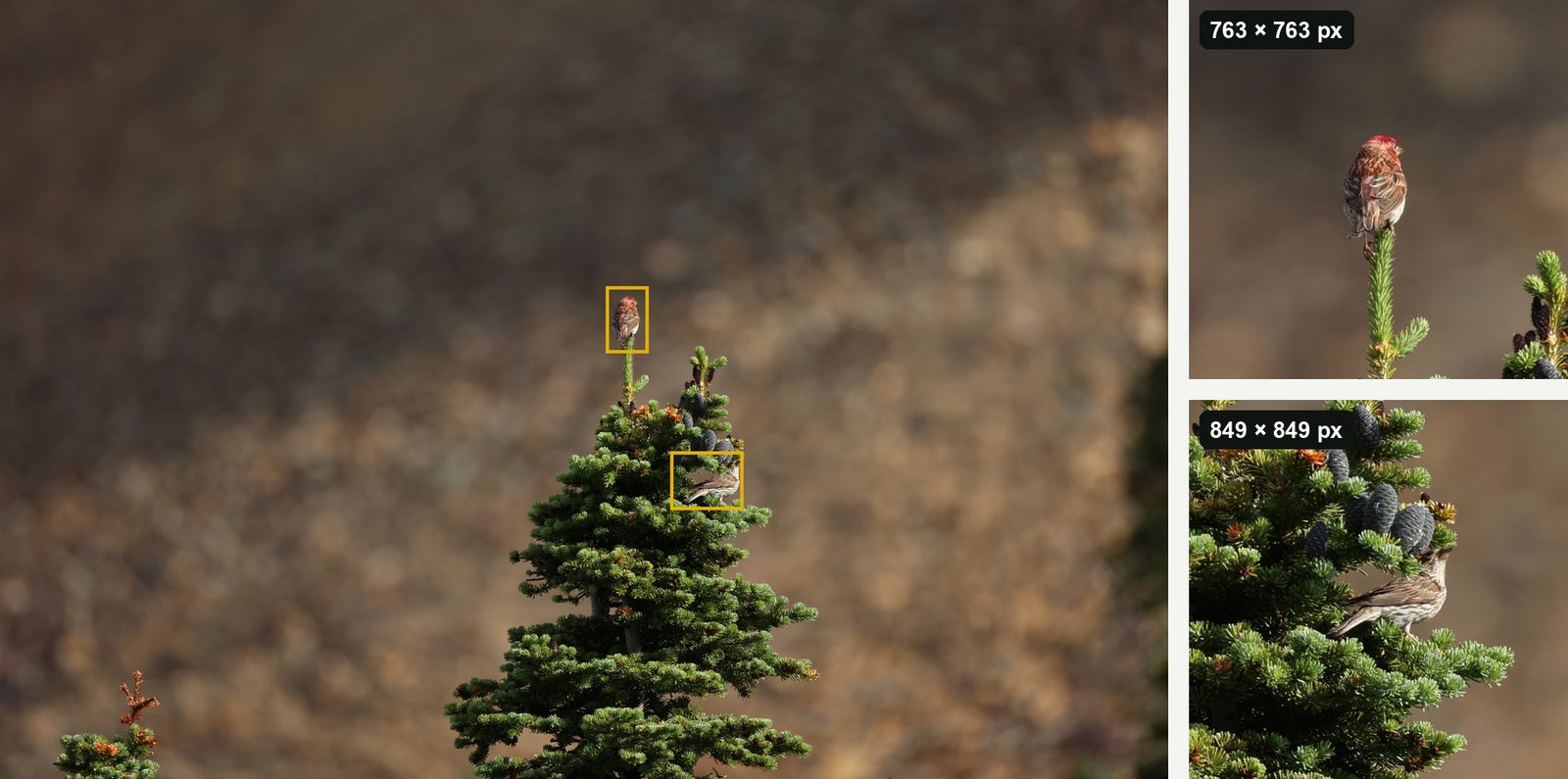
BirdFrame is free for up to 50 photos per run, and a one-time $29.99 unlocks bigger batches. No subscription. It needs macOS 15 or later.
Questions
Can Lightroom batch crop photos?
Yes. In Lightroom Classic you can crop one photo, then sync or paste that crop to other selected photos. It copies the crop's position, size, shape and angle, so every photo gets the same box.
Can Lightroom crop each photo around the subject automatically?
No. Lightroom has no subject-aware batch crop. An Adobe Community idea asking for AI-recommended crops has been open for voting since September 2021.
How do I crop each bird in a batch of RAW files?
Use a tool that finds the bird in each photo. BirdFrame reads CR2, CR3, NEF, ARW, ORF, RAF, RW2 and DNG from a folder and saves a JPEG crop of every bird, cut from the full-size original, without changing the originals. For a RAW+JPEG pair it crops the camera's JPEG, so set that to full size.
Crop every bird in one go, at full resolution. BirdFrame finds the birds in a whole album or folder and crops each one from the full-size original. Free for up to 50 photos per run.