Guides · Updated 27 October 2026
How to crop multiple photos at once in Apple Photos
You've imported a few hundred photos into Apple Photos and every one needs a crop. Photos has a good crop tool, but it only works one photo at a time.
Short answer: Apple Photos can't copy a crop to other photos. Apple's own guide says: "You can't copy and paste the settings from the retouch tool, red-eye tool, crop tool, or third-party extensions." To crop many photos at once you either export them to another tool, or use a Mac app that edits the album in place. For bird photos, BirdFrame crops a whole Photos album in one go, framing each bird separately, and every crop is a normal, reversible Photos edit cut from the full-size original.
On Windows? See how to crop multiple photos at once on Windows.
What Photos can and can't do
- Crop one photo: yes. Open the photo, click Edit, then Crop. You can pick a shape such as Square or 16:9 and drag the frame, or click Auto to let Photos straighten and crop that one photo (Apple: crop and straighten photos).
- Copy edits to many photos: partly. Image > Copy Edits, then select other photos and Image > Paste Edits. It copies adjustments like Light, Color and filters.
- Copy a crop: no. The crop is one of the settings Photos leaves out when you copy edits (Apple Photos User Guide, "Editing basics").
Even if Photos could paste a crop, it would paste the same box onto every photo. That's fine for scanned prints, but not for wildlife, where the subject is somewhere different in every frame.
Option 1: crop by hand
For a dozen photos, this is the quickest route. A few things make it faster:
- Select the first photo and press Return to open it in Edit.
- Open Crop, choose your shape once, and drag the frame around the subject.
- Click Done, select the next photo and press Return again.
The crop is non-destructive: Image > Revert to Original always brings the full photo back.
Option 2: export, batch crop, import
You can export the photos, crop them with a batch tool, and import the results. It works for product shots and scans, where the same box suits every photo. The drawbacks:
- Most batch tools apply one fixed box, so a bird that moved between frames ends up off-centre or cut off.
- You end up with duplicates in your library, and the crop is no longer a reversible edit.
- If you export "Current" versions at a reduced size, you lose resolution. Export unmodified originals if you go this way.
Option 3: crop a whole album with BirdFrame
BirdFrame is a Mac app that works directly with your Photos library. It finds the bird in each photo, including small, distant and half-hidden ones, and crops every photo in the album in one go.
- Choose an album. Put the photos you want cropped in an album, such as one per outing, and pick it in BirdFrame.
- Pick a framing. Tight, Balanced or Wide, square or rectangular. The preview shows the crop before anything changes.
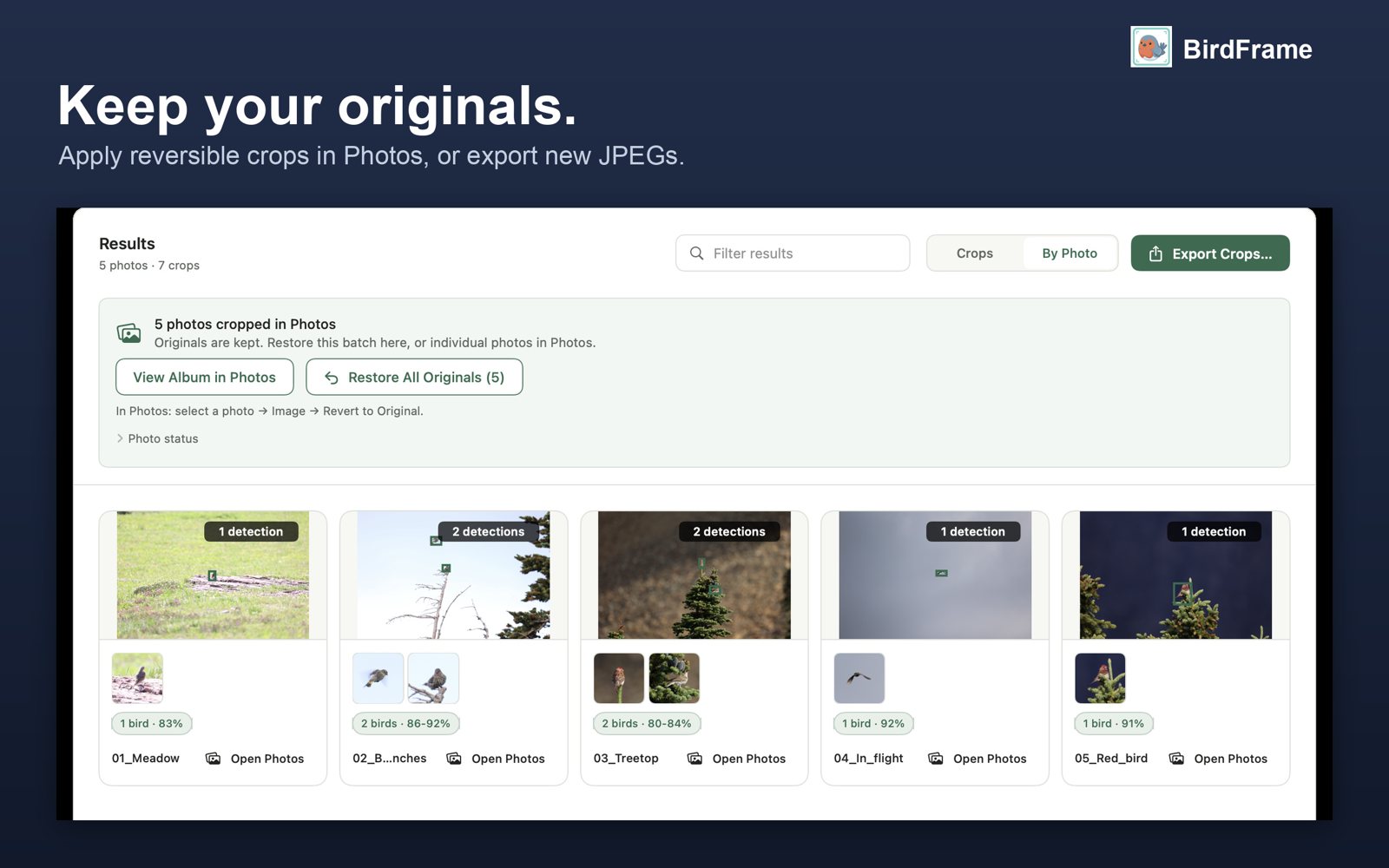
- Crop & Apply. BirdFrame saves a crop on each photo as a normal Photos edit, taken from the full-size original. Nothing is downscaled or generated.
- Check in Photos. Click View Album in Photos. Changed your mind? Run it again with a different framing; the new crop is taken from the original, not from the cropped copy.
A few things worth knowing:
- Your originals stay safe. Every crop is reversible: Image > Revert to Original for one photo, or Restore All Originals in BirdFrame for the batch.
- Photos you've already edited are left alone. BirdFrame won't silently replace an edit you or another app made; it flags those photos in their status so you can revert them first.
- Two birds in one photo? A Photos edit can hold one crop, so Crop & Apply frames both birds together. For a separate crop of each bird, click Export Crops after the run: it saves a JPEG of every bird, cut from the full-size original.
- iCloud Photos: the crops sync to your iPhone and iPad like any other edit. Photos stored only in iCloud are downloaded first, which takes longer.
What it costs
BirdFrame is free for up to 50 photos per run, with as many runs as you like. A one-time $29.99 unlocks bigger batches, so a 1,000-photo album is one run instead of twenty. No subscription. It needs macOS 15 or later.
Questions
Can Apple Photos copy a crop to other photos?
No. Apple's Photos guide says: "You can't copy and paste the settings from the retouch tool, red-eye tool, crop tool, or third-party extensions." Copy Edits and Paste Edits carry over adjustments such as light and colour, but not the crop.
Is there a batch crop in Photos for Mac?
Not built in. You can crop one photo at a time, or export the photos, crop them with another tool and import them again. BirdFrame crops a whole album inside Photos, with each crop saved as a normal, reversible Photos edit.
Can I undo the crops?
Yes. Crops made in Photos, by you or by BirdFrame, are reversible edits. Select a photo and choose Image > Revert to Original, or use BirdFrame's Restore All Originals for the whole batch.
Will the cropped photos show on my iPhone?
If you use iCloud Photos, edits made on the Mac sync to your other devices like any other Photos edit.
Crop every bird in one go, at full resolution. BirdFrame finds the birds in a whole album or folder and crops each one from the full-size original. Free for up to 50 photos per run.