Guides · Updated 4 November 2026
How to crop multiple photos at once on Windows
You've copied a few hundred photos from the card to your PC, and every one needs a crop. The Photos app in Windows has a good crop tool, but it works on one photo at a time.
Short answer: Windows has no built-in way to crop a batch of photos around what's in them. Photos crops the picture you have open, by hand or to a preset aspect ratio. Microsoft's free PowerToys Image Resizer handles many photos at once, but it's made for sizes: its Fill setting scales every photo to the size you set and crops whatever doesn't fit. For bird photos, BirdFrame finds the bird in each photo and crops around it, a whole folder in one go, from the full-size original. BirdFrame for Windows is coming soon.
On a Mac? See how to crop multiple photos at once in Apple Photos.
What Windows can do on its own
- Crop one photo in Photos: yes. Open the photo, select Edit image (Ctrl + E), and crop, flip or rotate it "to trim out the unwanted parts manually or use preset aspect ratios" (Microsoft Support: Edit photos and videos in Windows).
- Crop many photos in Photos: Microsoft's guide describes editing the photo you have open, one at a time. It doesn't cover cropping a selection of photos together.
- Resize many photos: yes, with PowerToys, Microsoft's free set of utilities. Select photos in File Explorer, right-click and choose Resize with Image Resizer (Microsoft Learn: PowerToys Image Resizer).
Option 1: crop by hand in Photos
For a dozen photos this is the quickest route, and it gives you full control of each frame.
- Open the first photo in Photos.
- Press Ctrl + E to open the editor, choose a preset aspect ratio if you want every crop the same shape, and drag the frame around the subject.
- Save, move to the next photo and repeat.
The catch is time. At 20 seconds a photo, 300 photos is well over an hour and a half, and a week's trip of 3,000 frames is more than 16 hours of cropping by hand.
Option 2: a batch tool with one size or one box
Batch tools apply the same settings to every photo in one run, which is quick when every photo needs the same treatment.
- PowerToys Image Resizer. Microsoft's documentation lists three ways to fit a batch to a size. Fill "Fills the entire specified size with the image. Scales the image proportionally. Crops the image as needed." Fit and Stretch don't crop. It's the right tool when every photo needs to be, say, 1080 × 1080 for a website. Because Fill also scales each photo to that size, it isn't a way to keep full resolution.
- IrfanView. The image viewer's Batch Conversion applies one set of processing settings to many files; its FAQ points to File > Batch Conversion, Advanced options for jobs on many images (IrfanView FAQ).
Either way, the settings are numbers you type once for the whole batch, not decisions about what's in each photo. That's fine for scans, screenshots and product shots, where the subject sits in the same place every time. It doesn't suit wildlife: one frame has the bird on a branch on the left, the next has it taking off on the right, and a fixed box cuts it off or leaves it tiny in the corner.
Option 3: crop a whole folder of bird photos with BirdFrame
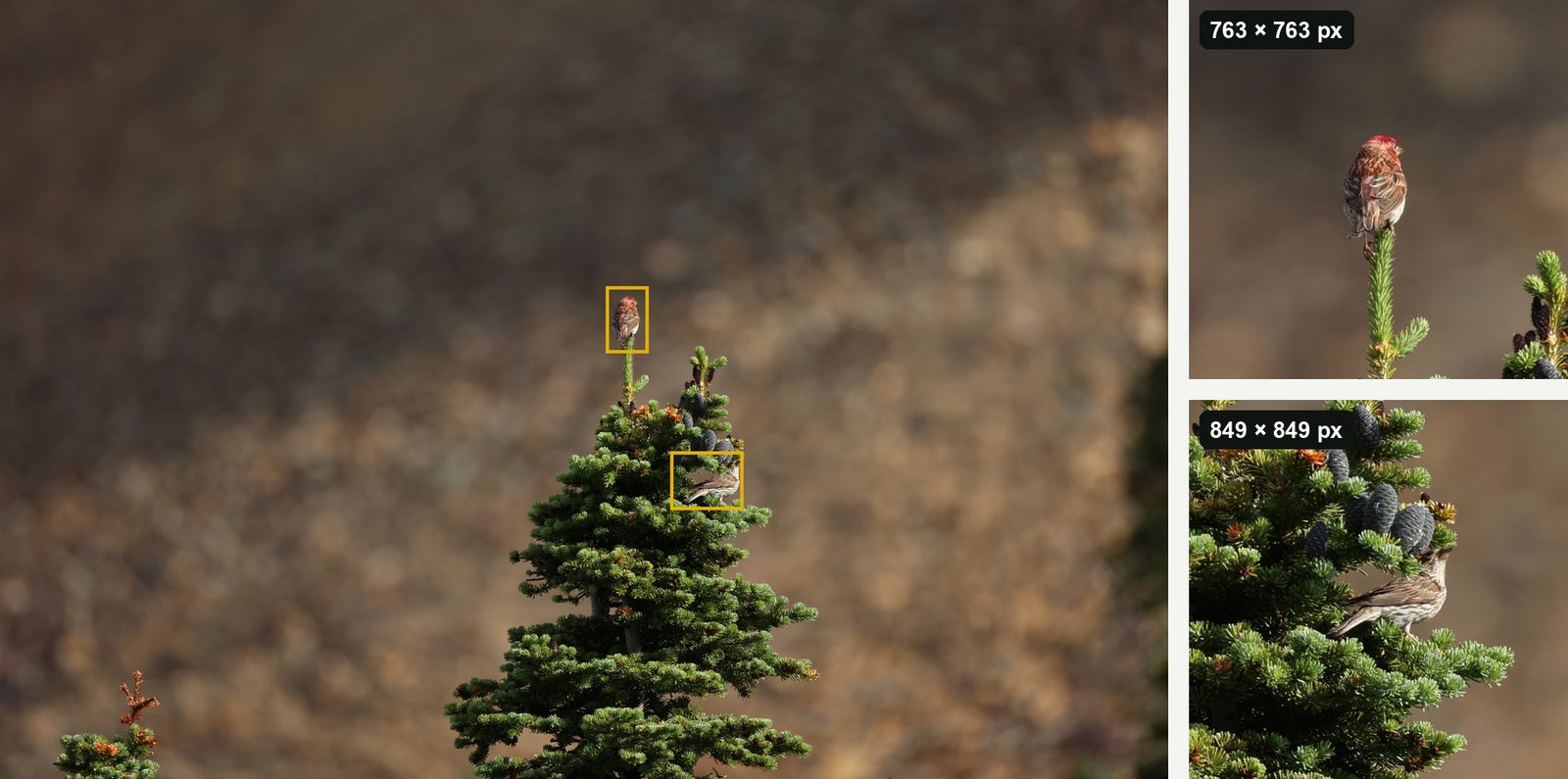
BirdFrame finds every bird in a folder of photos, including small, distant and half-hidden ones, and crops each one in the framing you choose. Thousands of photos in one go, at full resolution, so there's no cropping by hand.
- Choose a folder. JPEG, PNG and TIFF work straight away, and folders can also hold HEIC and camera RAW files (RAW on Windows). Subfolders are included, and a RAW+JPEG pair counts as one photo.
- Pick a framing. Preview Tight, Balanced or Wide on your own photos and choose a square or rectangular shape. One choice applies to the whole folder.
- Let it find the birds. Each bird is framed on its own, wherever it is in the frame. Photos taken seconds apart of the same scene are grouped into one moment, so a burst becomes a single card showing its clearest bird.
- Export Crops. Every bird is saved as a new JPEG in a folder you choose. A photo with two birds gives two crops, and your original files never change.
BirdFrame for Windows is coming soon. Join the waitlist and we'll email you once when it's out. On a Mac, it's on the Mac App Store today.
Full resolution, nothing generated
Every crop comes from your full-size original. Nothing is downscaled, and nothing is generated or added to your picture, so a crop keeps all the detail the frame had around the bird. Crops keep the photo's date, camera and location, ready for eBird or iNaturalist; you can turn location off in Settings to protect a nest site. Finding and cropping happens on your PC, and your photos aren't uploaded.
Which option to use
| Your photos | Best fit |
|---|---|
| A handful, each framed differently | Photos, one at a time |
| Hundreds that all need one size or shape | PowerToys Image Resizer or IrfanView's Batch Conversion |
| Hundreds or thousands of bird photos, the bird somewhere different in each | BirdFrame: every bird found and cropped in one go, at full resolution |
What it costs
BirdFrame is free for up to 50 photos per run, with as many runs as you like. A one-time US$29.99 Full Version unlocks bigger batches, so a 1,000-photo folder is one run instead of twenty. No subscription.
Questions
Can the Windows Photos app crop several photos at once?
Microsoft's guide to editing in Photos covers the photo you have open: select Edit image (Ctrl + E), then crop by hand or to a preset aspect ratio. To crop a whole batch in one go you need a separate tool.
Does PowerToys Image Resizer crop photos?
Only with its Fill setting, which in Microsoft's words "Fills the entire specified size with the image. Scales the image proportionally. Crops the image as needed." Fit and Stretch don't crop. Every photo in the batch gets the size you set.
Is there a BirdFrame for Windows?
It's coming soon. Join the waitlist and we'll email you once when it's out. On a Mac, BirdFrame is on the Mac App Store now.
Do the crops lose resolution?
Not with BirdFrame. Every crop is cut from the full-size original: nothing is downscaled, and nothing is generated or added to your picture.
Crop every bird in one go, at full resolution. BirdFrame finds the birds in a whole folder and crops each one from the full-size original. Free for up to 50 photos per run. The Windows version is coming soon; on a Mac, it's on the Mac App Store.